It’s always yours: free to read, kept up to date as the AI tools change, and here whenever you need it, before class, after it, and long after.
Class coming up?
Do the 30-minute setup first, so the whole hour goes to building.
4 · Set it up →
Just finished class?
What to try in your first week, and the chats that teach it fastest.
6 · Your first week →
Been at it a while?
Routines that run on your schedule, and new tools to plug in.
8 · Automations →
Stuck? Reply to your confirmation email and we’ll sort it out before class.
1 · Meet your assistant
An assistant that works inside the tools you already use.
It lives in Claude, keeps its memory in your own Notion, and works in your email and calendar. It’s trained in how great assistants think. Talk to it or type to it. It learns your world and gets better every week.
What it does
- Briefs you every morning on your day: what’s on the calendar, what landed overnight, what’s still open.
- Cuts through your inbox. It clears away the noise, spots the school email you’d have missed, and tells you what needs you and what can wait.
- Goes where you go. It isn’t stuck behind a keyboard. Talk to it from the car, between meetings or on a walk.
- Drafts for you. Replies, follow-ups, agendas and notes, in your voice.
- Remembers. Your people, your projects and how you like things done, so you never start from scratch.
Always on your terms
- You press send. It prepares the draft. You decide what goes out.
- You choose what it sees. Connect the tools you want, and change your mind any time. It reads your mail only to do the job you give it.
- It learns as you go. When it’s new to something, it asks, and it remembers the answer.
- It’s all yours to read. What it knows lives in your own Notion, where you can open it and make changes.
Its memory is yours
Everything it learns about you lives in your own Notion, on plain pages you can open, read and correct. It isn’t locked inside a chatbot. Change AI tools one day, and your memory comes with you.
2 · A day in the life
A day with your assistant, a few weeks in.
A look ahead: a normal day once your assistant is set up and knows your world. We build it together in class.
Morning · Automation
Your Daily Brief
Ready when you start your day. It reads your calendar, what landed overnight and what’s still open, then tells you what the day is really about. If only one thing matters, it says one thing.
Example
A
Good morning.
Steady day
The one thing: the Parker proposal goes out today. Everything else can move.
Needs you now
- Sarah is waiting on your answer about Thursday. A reply is drafted.
- The Johnsons asked for a revised quote before today’s call. It hasn’t gone out yet.
Your day
9:30 Team catch-up. Nothing new since Thursday.
2:00 Call with the Johnsons, about the spring schedule.
4:00 Clear. A good block for the proposal.
What do I need to prepare for my 2 o’clock?
Just the revised quote. Want me to pull last month’s numbers into a draft for you to check?
Through the day
Work on it together
This is where it earns its keep. Crafting emails, preparing agendas, sending out invites, following up with people, and working on your projects in Notion. It drafts and prepares. You review and send.
Put together an agenda for Thursday with the Parker team, and draft the invite.
Done. The agenda is on the Parker project page, and the invite is drafted for Thursday at 10. Want to look before it goes?
Anytime
Hand it the small stuff
Anything you’d hand a person, hand to it.
Go through my inbox. What actually needs me?
Three things. The rest is newsletters and receipts.
Anything on our shared home calendar this week?
Two things. Soccer moved to Saturday at 9am, and the plumber is booked for Thursday between 1 and 3pm. Want a reminder the night before each?
Find a time next week for a 30-minute call with the Johnsons.
Remind me what we agreed with Parker last month.
• • •
On the way home
Close out the day on your drive
Talk it through before you’re home. Plan tomorrow and see what your morning looks like. Catch up on what you missed while you were out. Update the team on where things stand, and answer customers before you sit down to dinner. Hands on the wheel, eyes on the road.
Let’s close out the day. What did I miss this afternoon?
Two customer emails, and Sarah has a question about the Parker timeline. I’ve drafted replies to all three. Want to hear them?
Sure. Then let’s draft a quick update to the team: the Parker proposal is out, and the Johnson quote goes tomorrow.
The team update is drafted and ready for you to send. Tomorrow starts at 9 with board prep, and your notes are ready. Anything else before you’re home?
Friday
Close out the week
End the week the way you end the day. Just ask: what got done, what’s left to wrap up, and how to start strong on Monday.
Let’s close out the week. Anything left to finish, and how do we start strong on Monday?
Just one thing: the signage quote is still open, and a follow-up is drafted for Monday morning. Your first hour Monday is clear, so it’s a good block for the Johnson kickoff. Want me to hold it?
How you get here
Your first chats
Two short sittings in your first week · section 7
3 · How it works
One system, built together.
Two pieces working as one. Notion is the mind: it holds what your assistant knows. Claude is the hands: it does the work, in the tools you already use. Here’s how they fit.
What it knows
About you
Your work
Your people
Your rules
Kept on Notion pages you can open and correct.
Notion
The mind
Holds what it knows about you and your work.
⇄ reads & writes
Claude
The hands
Does the work: drafts, sorts and follows up.
What it reaches
Gmail
Google Calendar
Google Docs
Microsoft 365
Meeting recorder
Connected, so it can read your day and draft for you. Add others you use.
You
Ask, approve and correct
In the Claude app, on your computer or phone.
Automations
Work it does on a schedule
Once we set them up together, these run on their own in Claude, and write back to Notion.
Daily brief
Inbox check
Meeting prep
Weekly review
Inside the mind: your Notion workspace
The diagram shows how the pieces connect. This is what’s inside the mind.
Get to know your Notion workspace
What makes Notion more than just a notes app?
- A full set of instructions. Carefully written to make it a great assistant. Seven layers, about 53,000 characters, on who it is, how it thinks, how it talks and how it acts. It double-checks anything you might act on, and drafts for your review.
- The Training Library. Your assistant’s own education in the craft, drawn from the best on the subject, like Harvard Business Review’s “Who’s Got the Monkey?”, Getting Things Done and Fair Play. It studies this before it starts getting to know you.
- A memory built around your life. A home for everything it learns: about you, your business if you have one, your other work and your home. Each has its own place, so a school email never lands in a client file.
- A guided onboarding interview. A custom-built experience for getting to know you. About 10 minutes a day for the first week, as it learns how to work with you, writing what it learns onto those pages as it goes.
- Directions on every page. Every page explains itself to your assistant: what it’s for and how to use it, so it always reads and writes in the right place.
- Playbooks and automations. Your daily brief, set up together in class, plus ready-made routines for meeting prep, your inbox and a weekly review whenever you’re ready for them.
Shaped by hundreds of hours of building, using and testing it, so you start where it took me months to get.
Also yours: the live build class, the recording for 30 days, and five ready-made playbooks: meeting prep, new project onboarding, daily progress update, the onboarding interview, and Daily Brief email styling.
4 · Set it up
Your 30-minute setup, before the workshop.
Do this before class, so the whole class goes to building. You’ll need Claude Pro, a free Notion account, and Gmail or Microsoft 365. Do the steps in order, and stop between them if you like.
Set up Claude
about 10 min
Sign in to Claude Pro at claude.ai. Pro is about $20 a month, paid to Anthropic, and it’s the one ongoing cost. The free plan won’t carry an assistant through a real week.
Make sure you’re in the paid account. If you’ve ever used Claude with another email, check the account name is the one you’re paying for.
Create a project for your assistant. Open Projects, choose New project, and give it any name you like. This is where your assistant lives from now on, and this guide calls it your assistant’s project.

Projects → New project, top right.
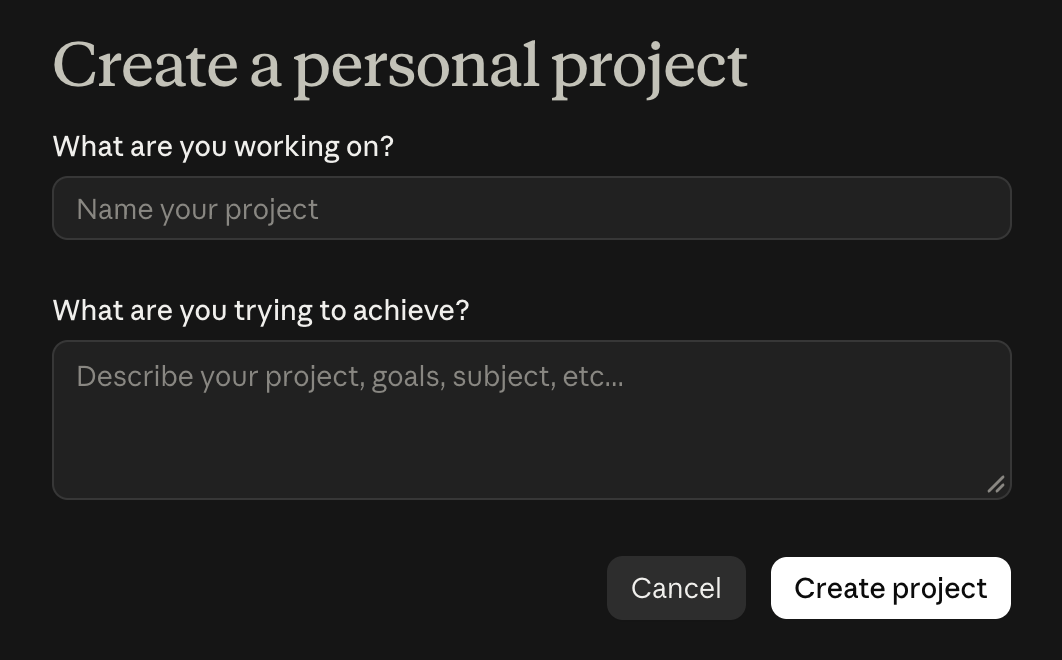
Name it anything you like. The description is optional.
Turn on memory. Open Settings, then Memory, and switch on Search and reference chats and Generate memory from chats, so your conversations remember each other. This is Claude’s own chat memory. Your assistant’s main memory lives in your Notion.
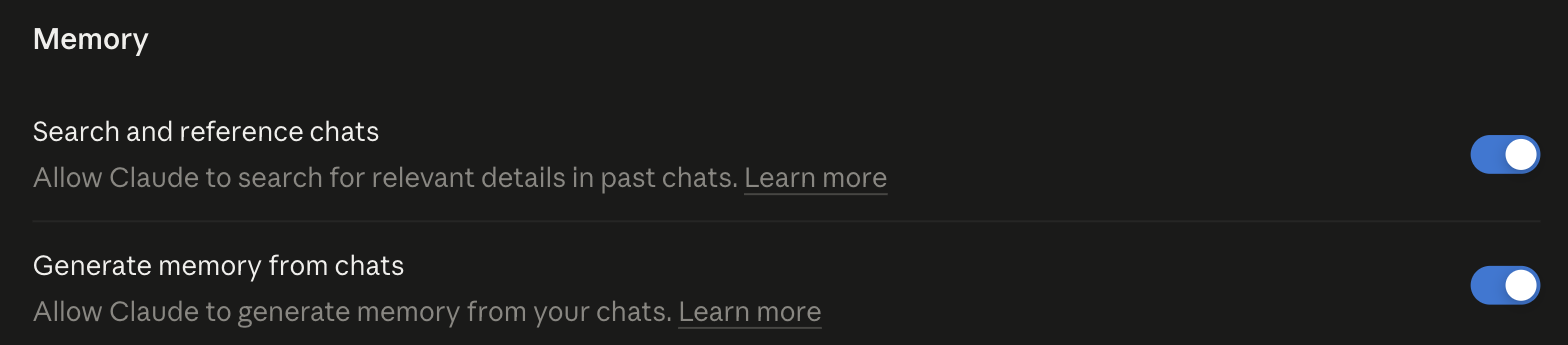
Settings → Memory. Both switches on.
Leave the project’s Instructions box empty. It’s where your assistant’s master prompt goes, and we fill it together in class.
Set up Notion
about 5 min
Create a free Notion account at notion.com if you don’t have one. This is your assistant’s memory: where it keeps everything it learns about you, your people, your projects and how you like things done. The free plan is all you need.

Sign up with your email, or continue with Google or Microsoft.
Leave it empty for now. In class, we’ll share The Modern Admin template and you’ll duplicate it into your own workspace in one click. Everyone starts from the same, latest version, and I can check yours worked.
Connect your tools
about 5 min
In Claude, open Settings. Under Customize, choose Connectors, then the Discover tab. Choose each one below, connect it, and allow access when it asks. Claude will ask once more the first time your assistant uses each one. That’s covered in class.
Notion. When it asks, choose your own workspace. Your template goes into it in class.
Email and calendar. Gmail and Google Calendar if you use Google. On Outlook at work? Choose Microsoft 365 instead, which covers both.
Two things that trip people up. Apple Mail, iCloud and Yahoo don’t have a connector yet, so if that’s where your email lives, reply to your confirmation email before class and we’ll sort it out. And if it’s a work Google or Microsoft account, your IT admin may need to approve Claude before it will connect.
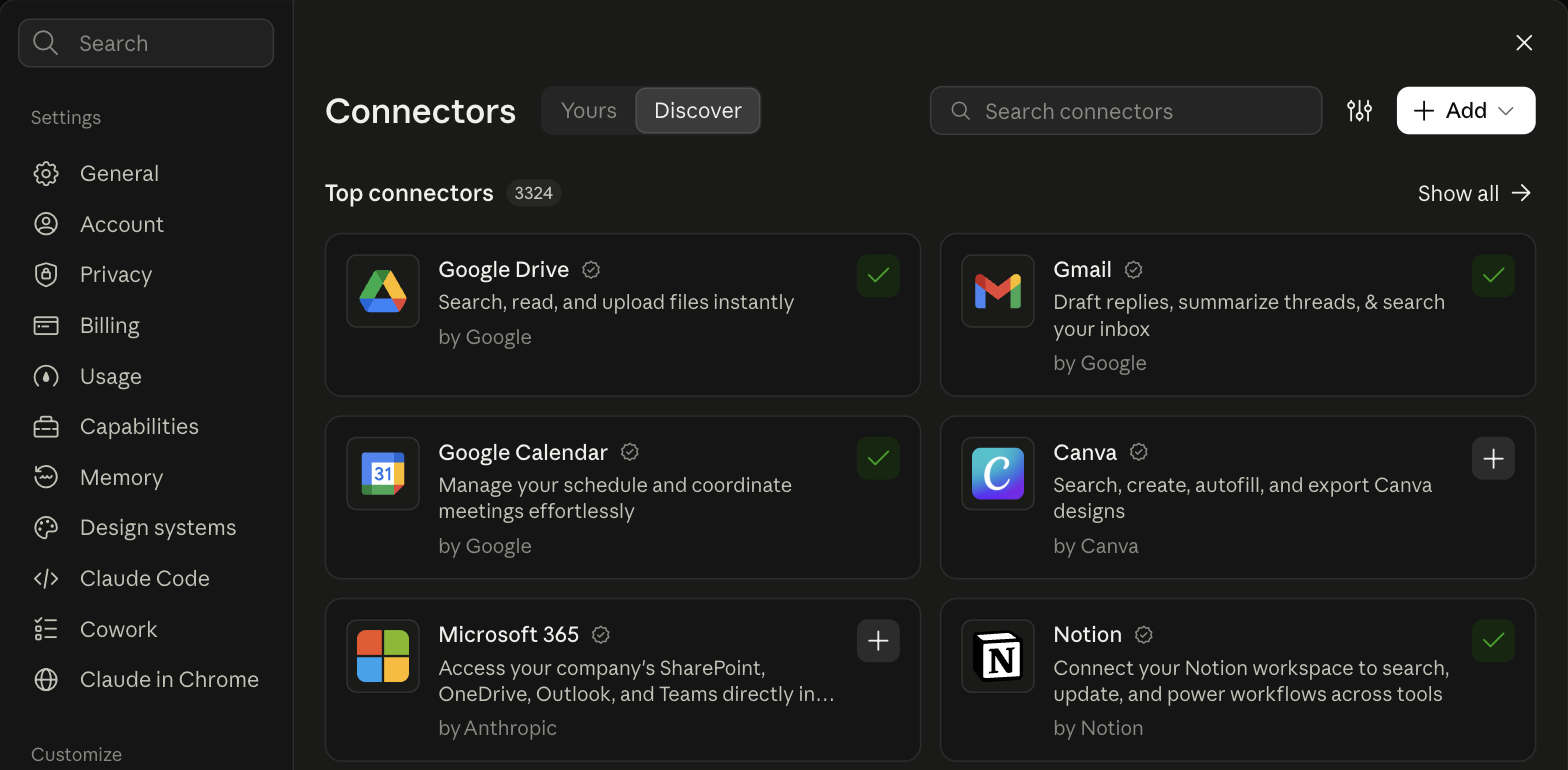
Settings → Customize → Connectors → Discover. Gmail, Google Calendar and Notion are all on the first screen.
Your assistant sees only what you connect. It reads your mail only to do the job you give it, and nothing sends without you.
You’ll know it worked
Each one shows as connected on the Yours tab in Connectors.
Get the Claude apps
about 3 min
Install the Claude desktop app from claude.ai/download and sign in. It’s what we use in class.
Install the Claude phone app from the App Store or Google Play, and sign in with the same account.
Open your assistant’s project on your phone, under Projects, and tap the mic.
This is the part most people miss. Your assistant isn’t stuck behind a keyboard. Talk to it from the car, between meetings or on a walk.
Choose a voice and say hello
about 2 min
Pick a voice. In the Claude phone app, open Settings, then Voice. Swipe through the voices (Buttery, Airy, Mellow and more), set the speed, and choose Hands free for quiet places or Push to talk for noisy ones.
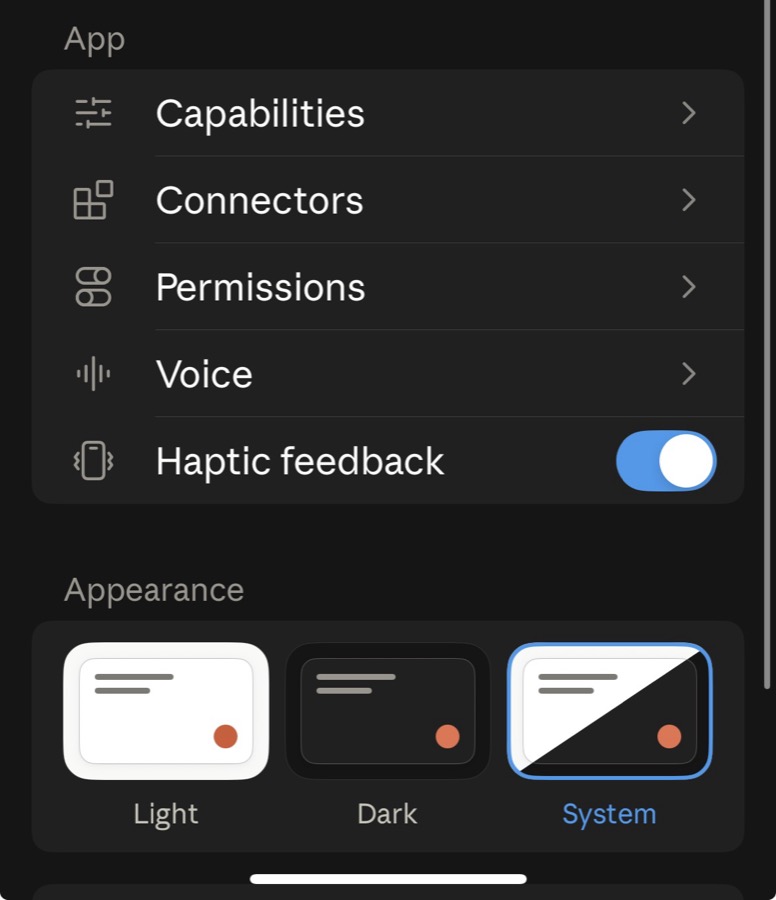
Settings → Voice

Swipe to pick a voice
Say hello. In your assistant’s project, tap the mic and ask something simple, like “What can you help me with?” You’ll get to know each other properly in class.

A little pro tip
Pick a voice you’d enjoy hearing every day. You’ll be talking to it on your drive, between meetings and first thing in the morning, so choose one that feels like good company. You can change it any time.
Get ready for class
about 3 min
Put the class on your calendar. Zoom’s registration email has your personal join link and a calendar invite. Add it now so the link doesn’t get lost.
Install the Zoom desktop app from zoom.us/download and sign in. Screen sharing is most of the class, and it works best in the app, not a browser.

On a Mac, choose Apple Silicon for Macs from 2020 on, or Intel for older ones. Then open the installer and follow the steps. On Windows, the page offers the Windows app instead.
Plan to join from your laptop or desktop, not your phone, and block out the full hour. You’ll watch and build at the same time, so a second screen helps. Without one, put Zoom and Claude side by side.
Live on Zoom, together
5 · During the workshop
This is where it becomes yours.
We do this part together, live, in class. Come with Claude and Notion open on your laptop, and we’ll build it screen by screen. There’s nothing to do here before then.
1
Make the Notion workspace yours
I share The Modern Admin workspace on the call. You duplicate it into your own Notion in one click, and from that moment it’s yours. Then I walk you through it: where your assistant’s memory lives, how the pages fit together, and what each one is for.
2
Load your master prompt
I hand out the master prompt in class. It’s the key that starts the whole thing: paste it into your project’s Instructions, and your assistant knows who it is and how it works.
Get my master prompt →3
Start the onboarding interview
Your assistant starts getting to know you: your people, your week, your work and your home. We start it together, and you finish it in your first week.
4
Run your first daily brief
We run your morning brief by hand, check it together, and put it on a schedule so it’s waiting for you tomorrow.
5
Talk to it, and join the community
Everyone asks their assistant something out loud from their phone. Then you join the private community group, before we say goodbye.
When it asks permission, choose Always allow
The first time your assistant reads your email, checks your calendar or writes a page in Notion, Claude stops and asks if that’s okay. That’s expected, not a warning. Choose ALWAYS ALLOW for each one. Each covers a single action, like updating a Notion page, and you’ll see a few in your first conversation, then they stop. The one exception is sending an email: choose Allow once there, so nothing goes out without you.
6 · Your first week
This is where it learns you.
About 10 minutes a day, on your own time. Day one it’s useful. By week three it knows your rhythm.
1
Finish your onboarding interview
Open a new chat in your project and start with “Let’s start my onboarding.” About 10 minutes a day. Stop whenever you like: everything you’ve said is already written down, it picks up where you left off, and your Notion shows how far you’ve got. It won’t steer you back on its own, so after a detour just say “Let’s keep going with onboarding.”
2
Hand it real work
Bring it what’s actually on your plate from day one. As you work together it learns your tone, who always gets through, what counts as urgent and what to check with you first. When it misses, a quick correction is enough. It asks whether that’s always or just today, writes the rule into your Notion, and tells you where it went.
3
Set up your daily brief
Design it in the Email Studio and put it on a schedule. Every brief is saved in your Notion, so your assistant builds a running record of what’s happening in your world. The longer it runs, the more it knows, and the better it gets. When something’s off, correct it once and it sticks.
Treat it like a real teammate
Everything it learns is saved to its memory in your Notion. The more you give it, the better it gets.
- It learns the way you talk, and it keeps your corrections and guidance.
- It learns when it’s taught. Correct it once, and it remembers.
- Tell it when you’ve finished something, so it stops reminding you.
- Fill it in on updates: a new client, a change of plan, a decision you made.
7 · Your first chats
Two sittings to get it going.
Start a fresh chat for each prompt. What it learns here is what it builds on.
Sitting one · day one
Get it started
Do these first, in this order.
1
Read the training
Read the Training Library index in the Assistant Library, and the three parts it names. Then tell me in a few lines how you’ll work with me.
2
Learn my email voice
Run Power-up // How I Write Email. Read my recent sent mail and fill in How I Sound (Email).
3
Introduce yourself
Introduce yourself: who you are, what you can and can’t do for me, and how I should ask for things.
4
Start my first project
Create a project page in Project Home for [your project]. The scope is [a line or two]. Put the first tasks on the Work Board.
Sitting two · later this week
Teach it your week
Once the first sitting is done. One a day is plenty.
End each chat with: “Before we finish, write down what you learned and tell me where you put it.”
8 · Automations
Put your automations on a schedule.
Four automations: a daily brief, inbox checks through the day, meeting prep each morning, and a weekly review. Ask for any of them anytime. We schedule the daily brief together in class. Add the others once you’ve seen them run by hand. They run in the cloud on Claude’s schedule, so your computer can be closed.
Your daily brief
What today holds, what landed overnight, what’s still open, and the one thing that matters. On Mondays it opens with the shape of the week.
When it runs
Weekdays, about an hour before you start
Where it lands
A new page in your Daily Briefs log, in Notion. By email too, if you ask for it.
Email Studio
Design your daily brief
Pick the sections and their order, choose a look and colour, and copy the prompt straight into your Claude schedule.
Open the Email Studio →Your inbox check
Beta
Sorts what’s new into needs you, worth knowing, and noise. Drafts the replies in your voice, and tracks what you’re still waiting to hear back on. It’s told never to send or delete anything.
When it runs
Weekdays, late morning. Add more passes as extra tasks if you want them.
Where it lands
A sorted summary in the task’s results, with reply drafts waiting in your email.
Ask your assistant
I’m ready to schedule my inbox check. Give me its schedule prompt.
Paste its answer into a new scheduled task. The steps are just below.
First, tell it your inbox rules: who always gets through, and what’s noise. Ask: “Let’s set up my inbox rules.” Without them it can only draft and suggest.
Your meeting prep
Beta
For each meeting today: who’s in the room, what the email thread actually says, what each side wants, and two or three moves to consider.
When it runs
Weekdays, early morning
Where it lands
One draft email to you, with every meeting in time order
Ask your assistant
I’m ready to schedule my meeting prep. Give me its schedule prompt.
Paste its answer into a new scheduled task. The steps are just below.
Your weekly review
Beta
Planned versus landed. What slipped, said plainly, and what carries into next week. The best reviews start from Monday’s week-ahead.
When it runs
Fridays, mid-afternoon
Where it lands
A page in your Weekly Reviews log, in Notion
Ask your assistant
I’m ready to schedule my weekly review. Give me its schedule prompt.
Paste its answer into a new scheduled task. The steps are just below.
Automations · Step by step
How to set a schedule.
About ten minutes per automation, once. Start with your daily brief.
The five steps
about 10 minutes per automation
Run it by hand first. In your assistant’s project, ask for it the normal way and read what comes back. Fix anything now, and the scheduled version picks up the fix. An automation that has never run once isn’t ready to run every day.
Get its schedule prompt. For the daily brief, get it from the Email Studio: design the email, then copy the prompt it gives you. For the other three, ask your assistant — each tab above has the words to use, with a copy button.
Open a new task. In Claude, click Scheduled in the sidebar, then New task, then Set up manually.
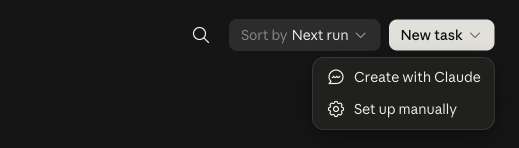
Choose Set up manually.
Skip the ready-made cards below it, like Daily briefing and Inbox triage. They’re Claude’s own versions, and they don’t know your workspace.
Fill it in. Name it after the automation and paste the prompt into Instructions. Under the prompt, choose Work in a project or folder and pick your assistant’s project. Set the Frequency, set Permissions to Automatically approve so it doesn’t sit waiting for you, then Save. That lets it act without asking you each time, so put any limits in its instructions, like “draft replies, never send them.”
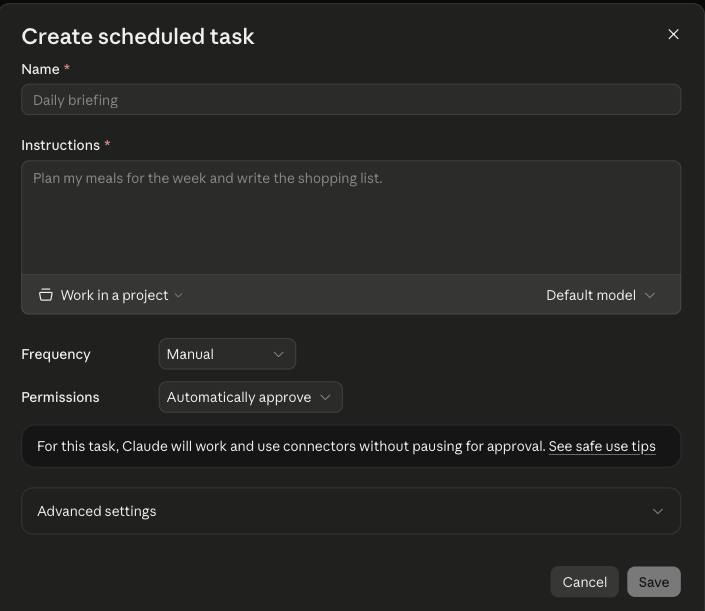
The form. “Work in a project or folder” sits just under the Instructions box.
It only shows your projects when you start from Set up manually, like above. Start from a ready-made card instead and edit it, and it offers folders only — no projects.
Run it once from the schedule. On the Scheduled page, press Run, then check it landed where the tab above says it should. If you already ran it by hand today, the scheduled run sees today’s brief already exists and stops instead of writing a second one — that’s correct; check again tomorrow. From the same page you can pause it, change the time or delete it.
Claude’s guide to scheduled tasks ↗
How scheduling works, and how to pause, edit or find a task again.
Using it safely ↗
What “Automatically approve” means, and Claude’s safe use tips.
Still stuck?
Reply to your confirmation email with a screenshot of where you are. A real person reads it.
9 · Power-ups (Beta)
Add new tools to your assistant.
A power-up is a one-time setup that gives your assistant something new to work with. It sets itself up in your Notion and Claude, and you can run it again later to update it. These are in beta, so tell us what you find.
Email Studio
Design the email your daily brief arrives in: sections, order, look and colour. Then copy the prompt into your schedule.
Open →Assistant Homebase
One private page with your day, week and work, live from your Notion and calendar. Ask it things, and approve calendar changes with a tap.
Install →More coming soon
New power-ups are on the way. You’ll hear about them in the community first.
How to install Assistant Homebase
Install copies the prompt. Paste it into a new chat in your assistant’s project.
It installs itself in Claude: it sets up its page in your Notion and creates your Homebase as a new artifact, then gives you the link.
Open your Homebase artifact and approve each connector it asks for: Notion, Google Calendar and Claude. The Settings tab shows a green light next to each one that’s connected.
Optional: the weekly schedule plans your week every Monday and checks everything is healthy.
Optional · weekly schedule
Every Monday morning, for my Assistant Homebase.
1. Week ahead. Look at my calendar for Monday to Friday and my open Work Board items due this week. In Weekly Reviews, add this week's row if it isn't there (never a second row for the same week): Week (the date range), Dates, Week shape (Light, Steady or Heavy), Pressure points (days that are heavy or have clashes), and The one thing (the single thing this week has to be about, in one plain sentence). If last week's row has something unresolved, put it in Still sitting.
2. Power-up check. Read Power-ups → Assistant Homebase in my Notion and run its Test suite quietly. If anything isn't green, try the safe fixes the skill allows, then tell me in two lines what you fixed and what still needs me. If everything is green, say nothing about it.
3. Keep it short. Write to Notion only what's described above. Don't email me unless something needs me.
10 · Your community
You’re not building this alone.
Coming soon: a private group for people running their own assistant. Ask questions, see what others are building, and hear about new playbooks first.
The Modern Admin Community · Coming soon
A private Facebook group
- Ask anything. Stuck on a step, or wondering how someone else set up their inbox rules? Ask the group.
- Borrow what works. Members share the routines, prompts and tweaks that made their assistant better.
- Hear it first. New playbooks, template updates and features land here before anywhere else.
How to join. The group opens soon. We’ll email you the invite link the day it does.
Membership
$99/year
Free
For founding members.
11 · Prompt library
Things to ask your assistant.
Real examples from an assistant at work. Pick a category, copy a prompt, paste it into your assistant’s project, and swap in your own names and details.
Clear the noise and find what needs you.
Plan the week and protect your time.
Keep up with everyone, and never drop a thread.
Walk in prepared, walk out with minutes and next steps.
What do I need for my 2 o’clock, and what should I know about who’s in the room?
What do we need for Thursday’s meeting beyond what’s already on the agenda?
Turn my notes from today’s call into a follow-up email with next steps and who owns each one.
Here’s the transcript from today’s meeting. Write up the minutes: decisions, action items with an owner and a date for each, and anything we parked. Save them to my Meetings page in Notion.
Use last month’s minutes to draft this month’s agenda: open action items first, then anything we put off.
Search my meeting notes. When did we decide [thing], and who was in the room?
Quotes, visits and follow-ups.
I just finished at [customer]’s. Here’s what I did and a photo of the job. Write it up for their file and draft a thank-you email with the invoice details.
Write a quote for [customer]: [the work], [the price], good for 30 days. Keep it plain and friendly, and draft the email to send it.
Who have I talked to in the last two weeks who hasn’t heard back from me? Draft a short, no-pressure check-in for each.
I’m seeing [customer] at 10. What did we talk about last time, and what’s still open with them?
Put tomorrow’s visits in a sensible order and block the drive time between them on my calendar.
Keep your people informed and every shift covered.
Build next week’s schedule from this availability. Spread the shifts fairly and flag any gaps before I share it.
[Name] is out Tuesday. Who’s free to cover? Draft the message asking them.
Draft this week’s update for the team: wins, what’s changing, and what I need from them.
Before my one-on-one with [name], pull together what they’ve been working on and anything they’ve raised with me.
Know where things stand.
Add a card to my launch board: set up a business Zoom account, assigned to me, due Friday.
Give me a one-paragraph status on [project]: what’s done, what’s stuck, and what’s next.
Here’s something I came across. Review it and tell me what you honestly think.
I’m deciding whether to [decision]. Argue both sides, then tell me what you’d do.
Build pages, projects and trackers.
Create a new project page in Notion for [project] with the goal, a task list, key dates and who’s involved.
Set up a Notion database to track my [jobs, leads or quotes]. Suggest the columns first, then build it when I say go.
Take everything we just talked about and put it on the [project] page in Notion, so it lives in one place.
Look through my Notion and tell me what’s gone stale: tasks past due and pages nobody’s touched in a month.
Presentations, one-pagers and a second pair of eyes.
Build a 6-slide presentation for [audience] on [topic]. Show me the outline first so we get the story right.
Here’s my deck. Review it like someone in the audience would: what’s unclear, what’s too long, and what’s missing?
Make a one-page visual of how [our process] works that I can hand to a customer.
Here’s a screenshot. Look at it and tell me what you’d change.
Turn these numbers into a simple chart, and tell me the one thing it shows.
Receipts, spending and what’s coming due.
Find every receipt in my email from this month and save them to my Receipts page in Notion, with the date, vendor and amount.
Find what we paid for [thing] last year. Check my email for the receipt.
How much have I spent with [vendor] in the last 12 months?
Are any bills, subscriptions or renewals due in the next two weeks?
Give me this week at a glance: money in, money out, and anything waiting on my decision.
12 · Other resources
Helpful places to go next.
A short, hand-picked list. Each one opens in a new tab.

Claude’s use case gallery
Ideas for what else Claude can do, sorted by the kind of work.

Claude 101
A free, short course from Claude Academy on getting good results.

Claude connectors directory
Every tool Claude can connect to. Check here before you ask if something is possible.

Scheduled tasks in Claude
How scheduling works, and how to pause, edit or find a task.

Download the Claude apps
Desktop and phone apps, so your assistant goes where you go.
Notion Help Center
Everything about Notion itself, from pages to sharing.